

Running LinkedIn Ads can be overwhelming, especially when managing campaigns across platforms and tracking results manually. Integrating LinkedIn Ads with HubSpot CRM simplifies this process by automating ad management, lead tracking, and performance analysis - all within one platform. Here's why it matters and how to get started:
- Save Time: Automate lead syncing and eliminate manual data entry.
- Boost Accuracy: Map LinkedIn form fields to HubSpot properties to avoid duplicate contacts.
- Improve ROI: Use dynamic audience targeting and offline conversion tracking to focus on high-value leads.
- Streamline Campaigns: Manage LinkedIn ads directly in HubSpot and track results in real-time.
- Enhance Personalization: Tailor ads and workflows based on sales stages or lead behavior.
Quick Steps to Get Started:
- Connect LinkedIn Ads to HubSpot: Link your accounts and enable auto-tracking for seamless data integration.
- Set Up Tracking: Configure HubSpot to monitor clicks, impressions, and conversions.
- Create Smart Lists: Use dynamic lists for precise targeting and exclusions.
- Run Campaigns in HubSpot: Build and manage LinkedIn ads directly from the HubSpot interface.
- Track Offline Conversions: Sync offline sales data to measure true campaign impact.
By combining LinkedIn’s targeting power with HubSpot’s automation tools, you can run smarter campaigns, track results better, and focus on what drives revenue. Whether you're a B2B marketer or sales professional, this integration helps you stay organized and maximize ad performance.
How to Import HubSpot Contact & Company Lists to LinkedIn Ads
How to Connect LinkedIn Ads with HubSpot CRM
Integrating LinkedIn Ads with HubSpot CRM allows for seamless campaign management and lead tracking. This setup brings your LinkedIn ad data directly into HubSpot, streamlining your marketing efforts.
Before you begin, make sure the following conditions are met:
- Your LinkedIn Ads account must be active (accounts on hold cannot be connected) [3].
- The HubSpot user must have "Publish" access to the ads tool and "Account Manager" permissions in LinkedIn Ads [3][4].
- Disable any ad blocker extensions during the setup process to avoid interruptions [3][4].
Steps to Link Your LinkedIn Ads Account to HubSpot
The entire connection process is handled within HubSpot. Start by navigating to the HubSpot Ads tool from the main menu. Select the option to connect a new ad account and choose LinkedIn from the list of platforms.
You’ll be redirected to LinkedIn’s login page, where you’ll need to sign in with your LinkedIn credentials. Carefully review the permissions being requested, such as the ability to view and manage your ad accounts and store your LinkedIn Ads account number [4]. Once you grant these permissions, you'll return to HubSpot.
Here, you can select the specific LinkedIn Ads accounts you want to connect. This feature is particularly helpful if you manage multiple LinkedIn accounts or oversee campaigns for different teams. After selecting the accounts, confirm your choices.
Once connected, HubSpot automatically enables auto-tracking by applying its tracking code to your LinkedIn ads. This helps monitor ad performance and track conversions [4]. After completing this step, you can move on to fine-tuning your tracking settings.
Setting Up HubSpot Tracking for LinkedIn Ads
With your accounts linked, the next step is to configure tracking to ensure accurate performance data. HubSpot's tracking system collects detailed metrics like clicks, impressions, and conversions, displaying them directly in your CRM dashboard.
One standout feature of this integration is lead syncing. Leads from LinkedIn lead generation ads are automatically transferred into HubSpot, eliminating the need for manual data entry [3]. During setup, map LinkedIn form fields to the appropriate HubSpot properties. Make sure all email fields are mapped to the standard Email property in HubSpot to avoid creating duplicate contacts [5].
You can also create tailored workflows in HubSpot for different LinkedIn form types. For instance, leads from a whitepaper download form could be entered into an educational email sequence, while demo request leads might trigger immediate sales outreach [5].
It’s worth noting that HubSpot only reports on LinkedIn Ads data from the past year [4]. Data older than that won’t appear in your dashboard. Additionally, the integration operates under LinkedIn’s terms and conditions, and HubSpot will store your LinkedIn Ads account number to maintain the connection [4].
To keep everything running smoothly, it’s essential to perform regular maintenance. Re-authorize API tokens periodically and refresh field mappings [5]. This ensures data syncs correctly and automated workflows continue to function as expected.
| Common Integration Issue | Likely Cause | Solution |
|---|---|---|
| Leads not syncing | Incorrect LinkedIn account connection or insufficient permissions | Verify the account connection and ensure permissions are granted [1] |
| Duplicate contacts appearing | Email fields mapped incorrectly | Map all email fields to the standard Email property in HubSpot [5] |
| Missing campaign data | Ad tracking disabled in LinkedIn Campaign Manager | Enable ad tracking in LinkedIn Campaign Manager settings [1] |
| OAuth connection errors | Browser cache issues or permission problems | Clear your browser cache, use an incognito window, and re-authorize the connection [5] |
How to Automate LinkedIn Ad Campaigns in HubSpot
Once your LinkedIn Ads account is connected to HubSpot, you can manage and run campaigns directly from the HubSpot platform. This integration centralizes your campaigns and data, making it easier to streamline your advertising efforts. Here's a step-by-step guide to creating and fine-tuning LinkedIn campaigns within HubSpot.
Creating LinkedIn Ad Campaigns in HubSpot
After connecting your LinkedIn Ads account, you can start building campaigns right in HubSpot. Head to Marketing > Ads in your dashboard and click Create ad campaign. From there, you’ll choose between two main options: Website Visit Ads to drive traffic to your site or Lead Generation Ads to collect leads directly on LinkedIn.
Keep in mind that HubSpot allows only one ad per campaign [6]. While this might seem limiting, it encourages you to focus your message. If you want to test different creatives, you’ll need to set up separate campaigns. Once you’ve selected your campaign type, choose your LinkedIn ad account and the sponsoring company page.
Next, upload your creative assets, write ad copy, and define your targeting criteria - HubSpot supports up to 100 targeting options. This includes filters like location, job title, industry, and even retargeting audiences based on website visitors or your existing contact database. HubSpot’s AI assistant can also help you craft ad copy and headlines, which is especially helpful for testing variations or targeting different audience groups.
When it comes to budgeting and scheduling, you can set daily or total budget limits and define start and end dates for your campaign. If you're running website traffic ads, you can expand your reach by enabling LinkedIn's Audience Network, which displays your ads on third-party publisher sites.
For users of Marketing Hub Starter, Professional, or Enterprise, automation tools take things a step further. You can automatically add contacts who interact with your ads to specific lists, send internal notifications when new leads are captured, and use pre-built workflows for follow-up actions.
How to Promote HubSpot Landing Pages via LinkedIn Ads
Using LinkedIn Ads to promote HubSpot landing pages ensures a smooth experience from the ad click to conversion tracking. To set this up, simply enter the URL of your HubSpot landing page when creating a website visit ad. HubSpot automatically applies tracking parameters, making it easy to monitor performance.
This integration pairs perfectly with HubSpot’s lead scoring and lifecycle automation. For instance, visitors who arrive via LinkedIn ads can be tagged and added to specific nurture workflows. Someone who downloads a whitepaper might receive follow-up educational content, while a demo request could trigger immediate outreach from your sales team.
For the best results, ensure that your ad and landing page messaging align. The headline, visuals, and value proposition should match to create a seamless and consistent experience. HubSpot’s A/B testing tools allow you to test different landing page designs alongside your LinkedIn ads, helping you fine-tune for higher conversions.
Additionally, incorporating LinkedIn’s tracking pixel ensures accurate attribution in your HubSpot analytics. This data helps you understand which ads are driving conversions and can inform the creation of lookalike audiences based on your most engaged visitors.
For Account-Based Marketing (ABM) strategies, LinkedIn campaigns can be tailored to drive traffic to personalized landing pages designed for specific companies or industries. HubSpot’s smart content tools make this even more effective by dynamically adjusting landing page elements - such as headlines or images - based on the visitor’s company or industry, creating a more personalized and engaging experience.
Up next, we’ll dive into refining your audience with dynamic targeting and exclusion settings. Stay tuned!
Setting Up Dynamic Audience Targeting and Exclusions
Dynamic audience targeting keeps your LinkedIn ad segments up-to-date by syncing them in real time with HubSpot data. This way, your ads stay relevant as contacts move through your sales funnel, while also cutting down on wasted ad spend targeting audiences that no longer fit your criteria.
Using Smart Lists for Audience Targeting
HubSpot's smart lists are a game-changer for dynamic targeting. Unlike static lists, these update automatically based on criteria you define, ensuring your audience segments remain fresh and relevant.
To create a smart list for LinkedIn, head over to Contacts > Lists in HubSpot and click Create list. Choose an Active list so it updates automatically. You can segment contacts based on a variety of factors like lifecycle stage, company details, recent website activity, or engagement with past campaigns. For example, you might build a list of manufacturing companies (100–500 employees) that visited your pricing page in the last 30 days. The list will refresh continuously, adding new companies that meet the criteria and removing those that don’t.
"If you're using HubSpot and LinkedIn ads, I highly recommend using their dynamic audience building feature. This is a great way to combine your advertising efforts with other outreach efforts in real-time and also allows you to segment by lifecycle stage and other parameters in your HubSpot instance."
– Ali Yildirim, CEO and Co-Founder @ Understory [7]
Once your smart list is ready, HubSpot syncs it automatically with LinkedIn's Campaign Manager. You can test both contact lists and company lists to see which delivers better results.
One effective strategy is targeting by lifecycle stage. Create separate smart lists for leads, marketing qualified leads (MQLs), and sales qualified leads (SQLs). Then, tailor your ad content to match each group’s position in the funnel. For instance:
- Leads might receive educational content.
- MQLs could see invites to webinars or free trials.
- SQLs might be targeted with case studies or demo offers.
By combining HubSpot’s detailed audience data with LinkedIn’s targeting options (like job titles, skills, or seniority), you can create precise audience segments that go far beyond basic targeting.
On top of all this, HubSpot’s dynamic exclusions feature helps refine your campaigns further by filtering out unqualified accounts automatically.
How to Set Up Dynamic Company Exclusions for LinkedIn Ads
Dynamic exclusions are a great way to prevent your ads from reaching the wrong people - like current customers, competitors, or prospects already deep in your sales process. This keeps your campaigns focused and ensures your messaging stays relevant.
Start by creating smart lists in HubSpot for the companies or contacts you want to exclude. Common exclusion lists might include:
- Current customers
- Churned accounts
- Competitors
- Companies already in active sales discussions
When setting up your LinkedIn campaign in HubSpot, go to the targeting section, click Add exclusion, and then choose Add audience exclusions to integrate your pre-built exclusion lists.
"Taking this one step further, you can then use those audience segments to exclude those accounts/people from irrelevant campaigns. For example, excluding your customers from campaigns focused on new business. Or only targeting existing accounts/contacts on expansion efforts and excluding non-customer target accounts/people."
– Aaron Poach, Marketing Player-Coach | Demand Gen & ABM Pro for Thales [7]
To exclude customers, you can create a smart list that automatically updates based on deal stage. For example, include companies with a deal stage of "Closed Won" to ensure they’re excluded from acquisition campaigns. Similarly, exclude companies in advanced deal stages from top-of-funnel campaigns to avoid redundant targeting.
Competitor exclusions work similarly. Maintain a smart list of direct competitors and update it regularly to reflect new market players. These exclusion lists, like your targeting lists, refresh automatically. For instance, when a prospect becomes a customer, they’ll be removed from new business campaigns without you needing to lift a finger.
It’s important to monitor your exclusion lists to ensure they aren’t too restrictive. LinkedIn requires a minimum of 300 matched users to serve ads, so if your audience size falls below this threshold, you may need to adjust your exclusions or broaden your targeting criteria to strike the right balance between precision and reach.
sbb-itb-7f1e12d
How to Track Offline Conversions in HubSpot
Integrating offline conversion tracking into your HubSpot setup takes your campaign analysis to the next level. While online interactions are critical, offline tracking connects LinkedIn ad clicks to actual sales outcomes. This process captures conversions that happen outside of LinkedIn, helping the platform's machine learning identify which ads generate revenue. Here's how you can set it up and make the most of it.
Setting Up Offline Conversion Tracking
HubSpot works seamlessly with LinkedIn's Conversions API to sync offline events. To get started, head to Marketing > Ads in HubSpot and click Create Event. Select LinkedIn as your network, choose your connected account, and assign a lifecycle stage - like "Customer" for closed deals or "Sales Qualified Lead" for opportunities. You can use actual deal amounts or assign a fixed value that represents each conversion's worth. Be sure to configure your data sharing settings with privacy compliance in mind by linking a HubSpot property for user consent.
Keep in mind, LinkedIn can only sync events that occur within 90 days of an ad click. Once your event is synced, its status will appear as "Active" in your HubSpot dashboard.
If you're already using lifecycle stage events, you can upgrade them to LinkedIn's Conversions API. Just go to the Events tab, select Replace event, and transition to the API-based approach for more accurate tracking.
How to Analyze Campaign Performance with Offline Data
After setting up offline conversion tracking, you'll gain insights into how these conversions impact your business. HubSpot’s attribution tools shift the focus from surface-level metrics to meaningful results. Go to Reports > Analytics Tools > Attribution Reporting to access key metrics like cost per Sales Qualified Lead (SQL), cost per customer, and return on ad spend (ROAS).
For instance, a company selling a $25,000 software product initially optimized campaigns for a $72 cost per lead. But only 1 in 20 leads turned into serious sales conversations[8]. By uploading closed-won deals and linking them to specific campaigns, they identified the creative set driving real revenue. This allowed them to scale profitable campaigns and pause the underperforming ones.
To help LinkedIn refine ad delivery, upload offline conversion data regularly - weekly if possible. This ensures LinkedIn can identify trends in successful conversions and optimize accordingly. You can monitor your upload status in HubSpot's ads dashboard to confirm everything is running smoothly.
Segmenting offline conversions by deal size, industry, or sales cycle length can also reveal valuable insights. This data helps you refine your targeting strategy and shape your overall go-to-market approach.
Using Zapier for Advanced Automation
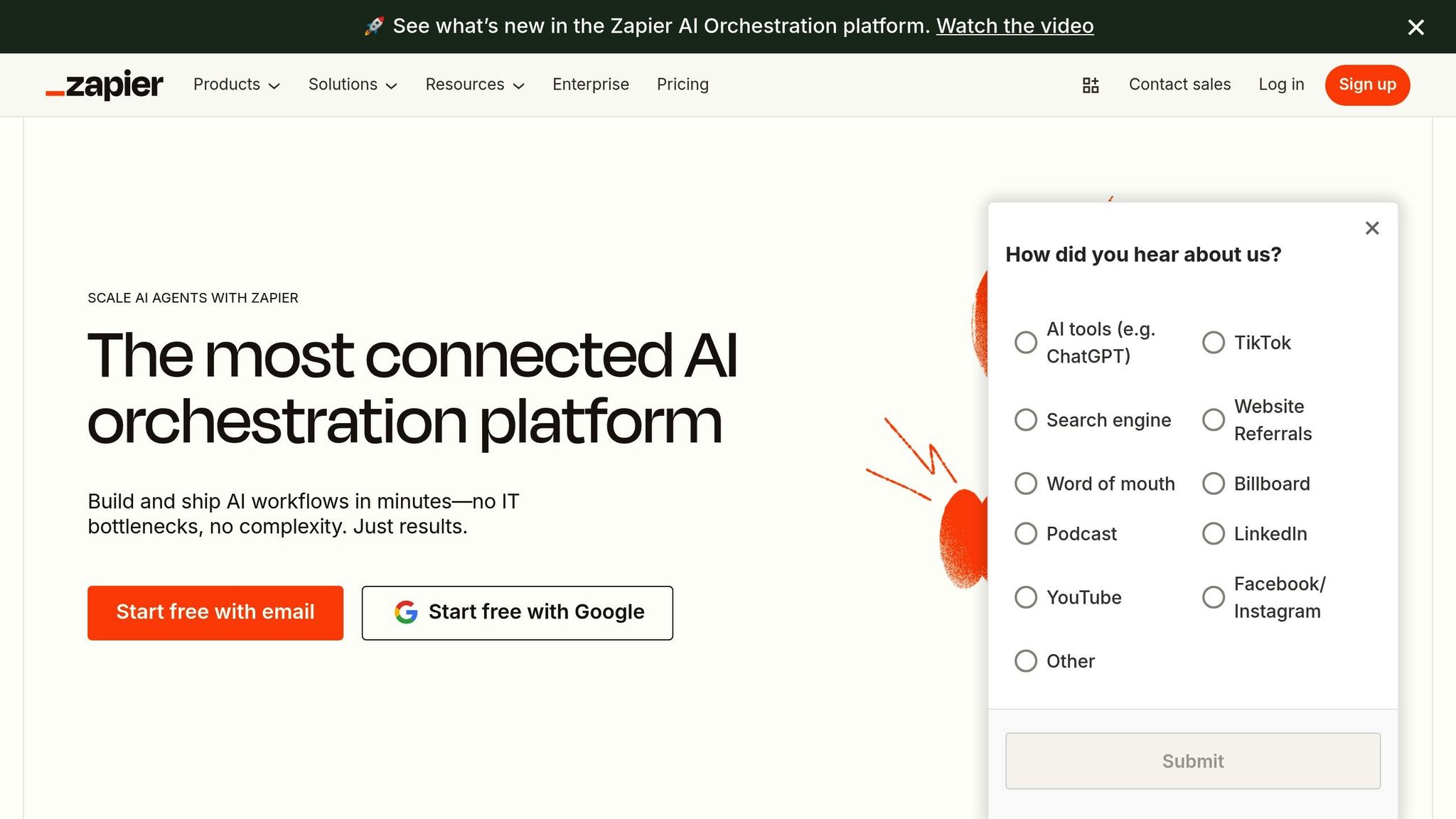
HubSpot's native LinkedIn integration covers the basics, but if you're looking to take your marketing and sales workflows up a notch, Zapier is your go-to tool. With its "Zaps" - a system of triggers and actions - Zapier lets you create advanced, automated processes that connect LinkedIn Ads and HubSpot in ways that save time and improve efficiency.
Here, we'll walk you through the setup process and explore some tailored workflows to help you get the most out of Zapier.
How to Set Up Zapier for LinkedIn and HubSpot
Zapier adds another layer of flexibility to the already powerful integration between HubSpot and LinkedIn Ads. Here's how to get started.
First, sign up for a Zapier account if you don’t already have one, and connect your HubSpot CRM and LinkedIn Ads accounts through Zapier’s integrations panel. Decide which app will serve as the trigger. For example, you could set LinkedIn Ads to trigger the workflow when a new lead is generated, or you could have HubSpot send data to LinkedIn. Select the specific trigger event, such as capturing a new lead from a LinkedIn Lead Gen Form.
Next, configure the action. For example, if your trigger is a new LinkedIn lead, you might set the action to automatically create a HubSpot contact and kick off an email sequence. Zapier also provides pre-made templates, which can simplify this process if you're new to automation.
"Yes, our integration allows you to automatically sync LinkedIn Ads data with HubSpot. By setting up specific triggers, you can transfer information about leads generated from LinkedIn campaigns directly into HubSpot without manual intervention." - Zapier [9]
Before activating your Zap, test it with sample data to make sure every step works as intended. Once you're satisfied with the results, turn it on and let it run in the background, keeping your workflows smooth and hands-free.
Custom Automation Examples
Zapier’s flexibility allows you to create workflows tailored to your specific business needs. Here are some practical examples:
- Lead Enrichment and Scoring: When a new lead comes in from LinkedIn, Zapier can enrich the data using tools like Clearbit and update HubSpot with a lead score. This gives your sales team a complete profile without the hassle of manual updates.
- Content Syndication: Automate the sharing of your HubSpot blog posts as LinkedIn company updates. You can also set up Zaps to share updates when new contacts join specific HubSpot lists, keeping your audience engaged with fresh content.
- Conversion Tracking: Use Zapier to trigger LinkedIn Conversion events when new contacts or companies are added in HubSpot. This feedback loop helps LinkedIn refine your ad targeting with up-to-date CRM data.
- Multi-Step Lead Nurturing: Streamline lead nurturing by automating multiple actions. For instance, when someone fills out a LinkedIn Lead Gen Form, Zapier can create a HubSpot contact, enroll them in an email sequence, assign a follow-up task to your sales team, and update LinkedIn audience lists for retargeting. This ensures no lead slips through the cracks.
- Audience Synchronization: Keep your LinkedIn Ads audiences aligned with your latest HubSpot contact lists. This is especially handy for creating exclusion lists to avoid targeting existing customers or unqualified leads in future campaigns.
These workflows are designed to seamlessly integrate with your LinkedIn campaigns managed through HubSpot, improving data flow and enhancing your campaign precision.
The best way to approach Zapier automation is to start small. Begin with simple workflows and gradually add complexity as you identify areas for improvement. This step-by-step strategy ensures that your automations deliver meaningful results for your marketing and sales efforts.
Conclusion
Integrating LinkedIn Ads with HubSpot CRM reshapes how B2B marketers manage their advertising strategies, offering a complete view of the customer journey. While LinkedIn Ads focuses on metrics like clicks, impressions, and engagement, adding HubSpot to the mix brings lead conversions and pipeline impact directly into your CRM [11]. This seamless connection ensures you can track progress from initial lead capture all the way to closed deals.
Features like dynamic audience targeting and offline conversion tracking take campaign performance to the next level. For instance, 3Q Digital saw a 25% increase in their lead pool and a 24% improvement in cost-efficiency by utilizing LinkedIn Dynamic Ads [10]. Additionally, syncing company exclusion lists dynamically helps ensure your budget is spent on reaching fresh, qualified leads.
HubSpot's centralized management tools further simplify the process. Its unified interface acts as a command center for managing LinkedIn campaigns, which becomes invaluable as your team grows and campaigns become more intricate [2].
For marketers focused on account-based strategies, this integration allows for highly personalized LinkedIn campaigns. By using detailed buyer personas and contact lists within HubSpot, you can create campaigns that align closely with your ideal customer profile. The result? Higher engagement, better lead quality, and clearer revenue tracking.
FAQs
How can integrating LinkedIn Ads with HubSpot CRM optimize lead tracking and campaign management?
Integrating LinkedIn Ads with HubSpot CRM
Connecting LinkedIn Ads with HubSpot CRM makes managing leads and campaigns smoother by automating essential tasks and boosting productivity. Leads captured through LinkedIn are instantly synced with HubSpot, so you never miss a potential opportunity. This seamless connection also simplifies follow-ups, keeping everything organized and efficient. Plus, you can run and monitor your LinkedIn ad campaigns directly from HubSpot, giving you real-time performance insights and the ability to make data-driven tweaks on the fly.
One standout feature of this integration is the ability to sync audience lists dynamically. For example, you can exclude certain companies or focus on businesses already in the opportunity stage by showing them tailored ads. Another game-changer is offline conversion tracking, which lets you measure how your campaigns truly perform, offering a clearer picture of your ROI. By combining LinkedIn's advertising power with HubSpot's CRM capabilities, your marketing strategies become sharper and more effective.
How can I set up offline conversion tracking between LinkedIn Ads and HubSpot?
To link offline conversion tracking between LinkedIn Ads and HubSpot, start by connecting your LinkedIn Ads account to HubSpot. You can do this through the Marketing > Ads section in HubSpot. Once the connection is established, set up conversion events in HubSpot by defining the lifecycle stage that counts as a conversion and syncing it with LinkedIn.
Then, upload your offline conversion data - such as offline purchases - into LinkedIn Campaign Manager. You can either do this manually using a CSV file or automate the process through an API integration. After uploading, set up conversion rules in LinkedIn. These rules allow you to define behaviors, attribution models, and timeframes to track conversions effectively.
Keep in mind that it may take up to 48 hours for the data to sync and show up in your reports. Once it does, use the insights to analyze your campaign performance and fine-tune your approach for improved results.
How does dynamic audience targeting and exclusions improve LinkedIn ad campaigns with HubSpot?
Dynamic audience targeting and exclusions in HubSpot can take your LinkedIn ad campaigns to the next level. How? By ensuring your ads reach the right people while avoiding unnecessary spending. With automatic syncing of your CRM data to LinkedIn, you can zero in on high-value prospects - like those who’ve interacted with your brand or reached key lifecycle stages, such as the opportunity stage. This kind of precision targeting can drive stronger engagement and higher conversion rates.
On the flip side, excluding specific audiences - like current customers or companies that don’t align with your ideal profile - helps sharpen your campaign's focus. This way, your budget is spent on users who are more likely to act, improving both your return on ad spend (ROAS) and overall campaign performance. To top it off, features like offline conversion tracking let you connect your ads directly to sales and revenue, giving you a clearer picture of how well your campaigns are working.